
1 · Taking an order
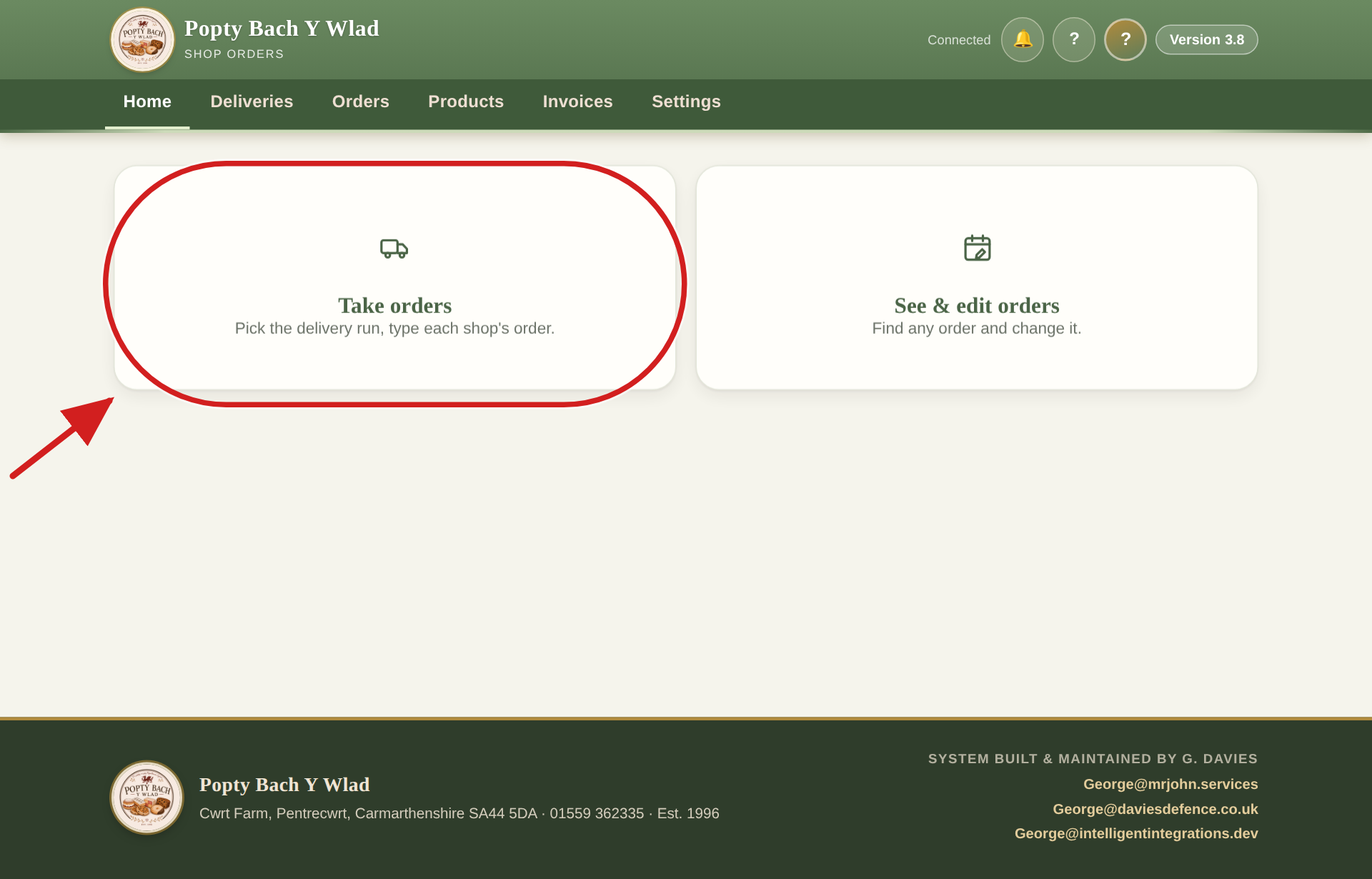
Press the big "Take orders" button
When you open the order book, you will see two big buttons. Press the one in the red circle, called Take orders.
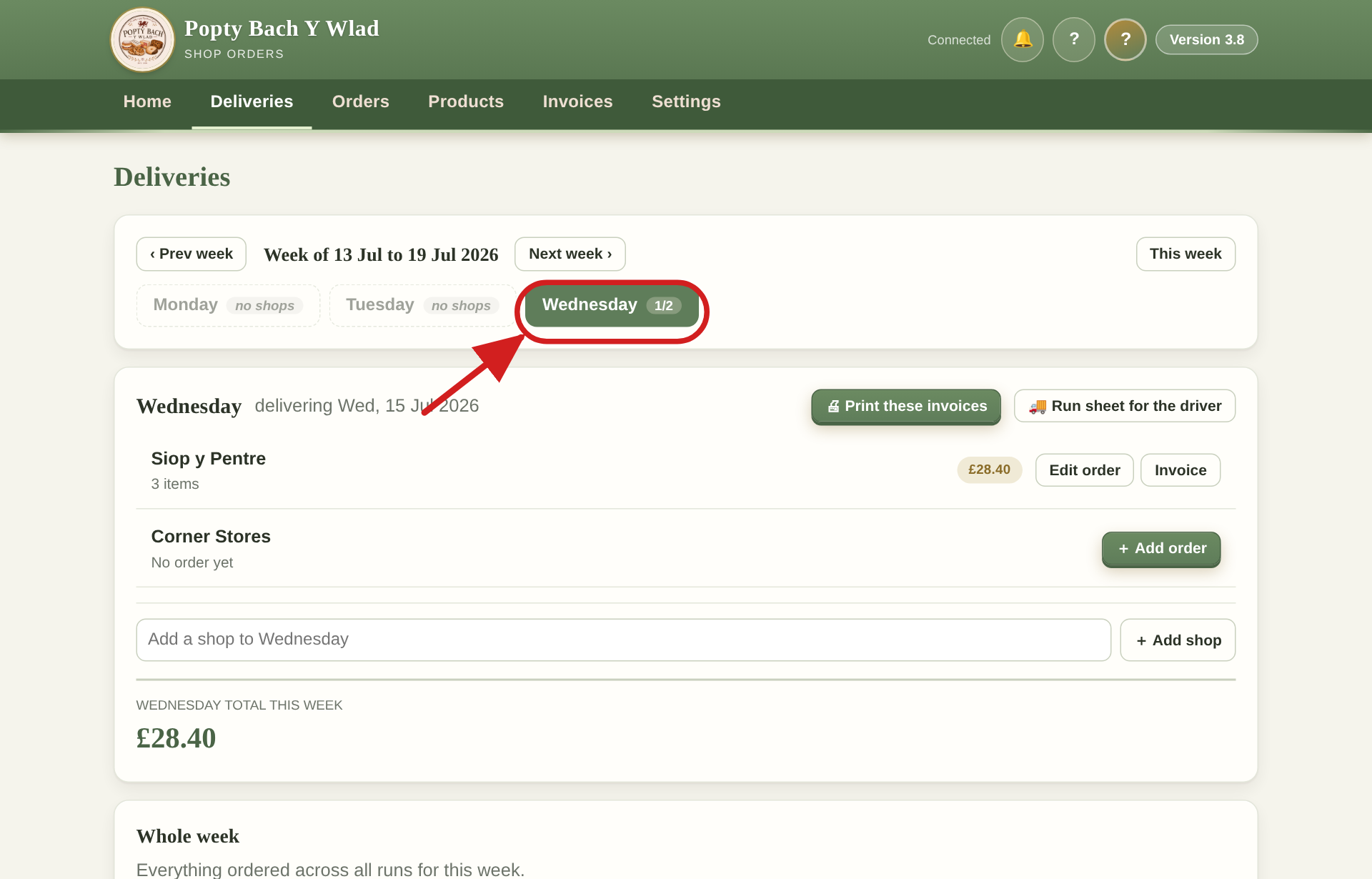
Pick the delivery day
Press the day the shop wants their delivery, for example Wednesday. Days that look faded have no shops yet, so you will not need them.
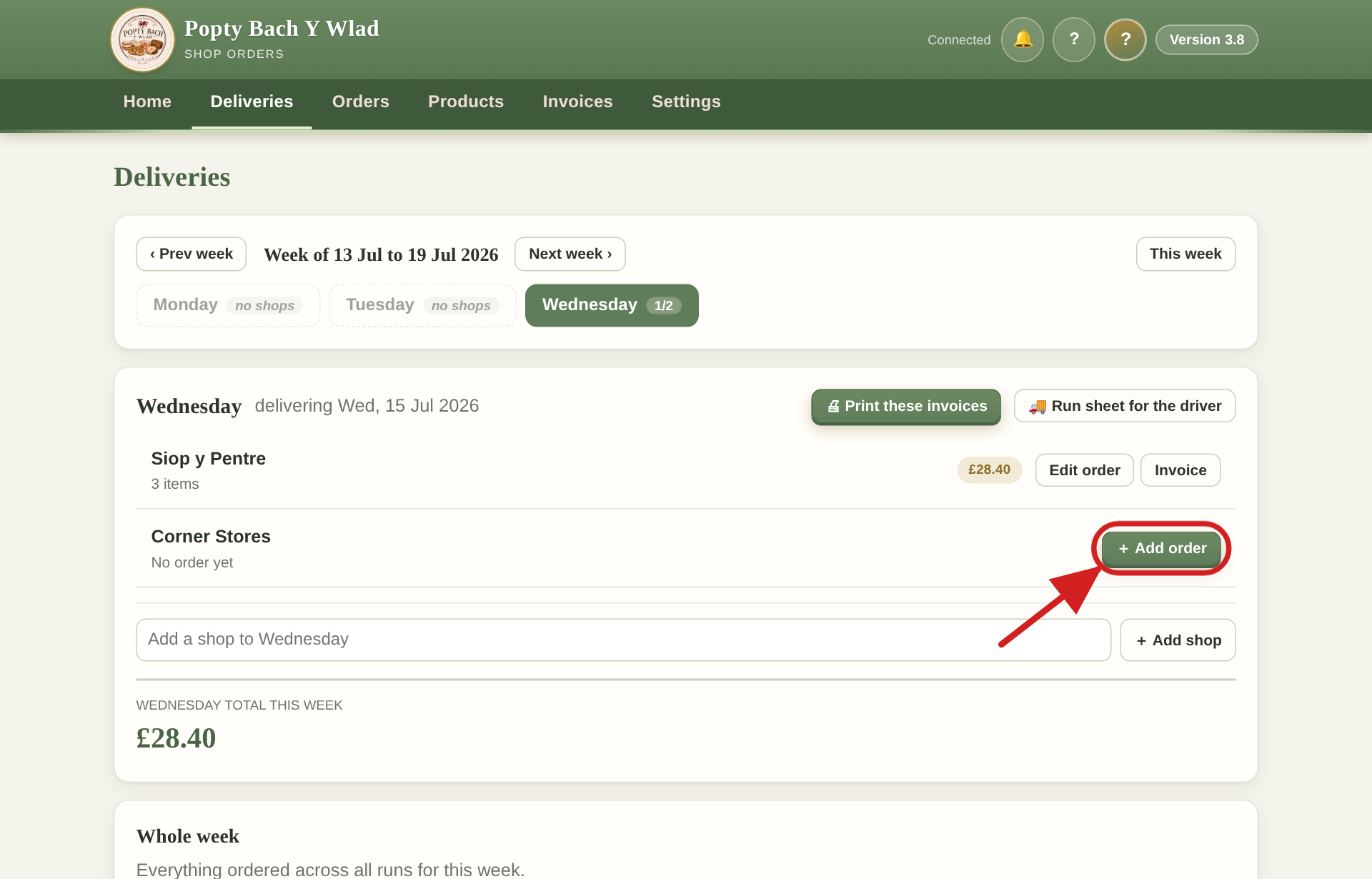
Press "Add order" next to the shop
Find the shop's name in the list, then press the + Add order button beside it.
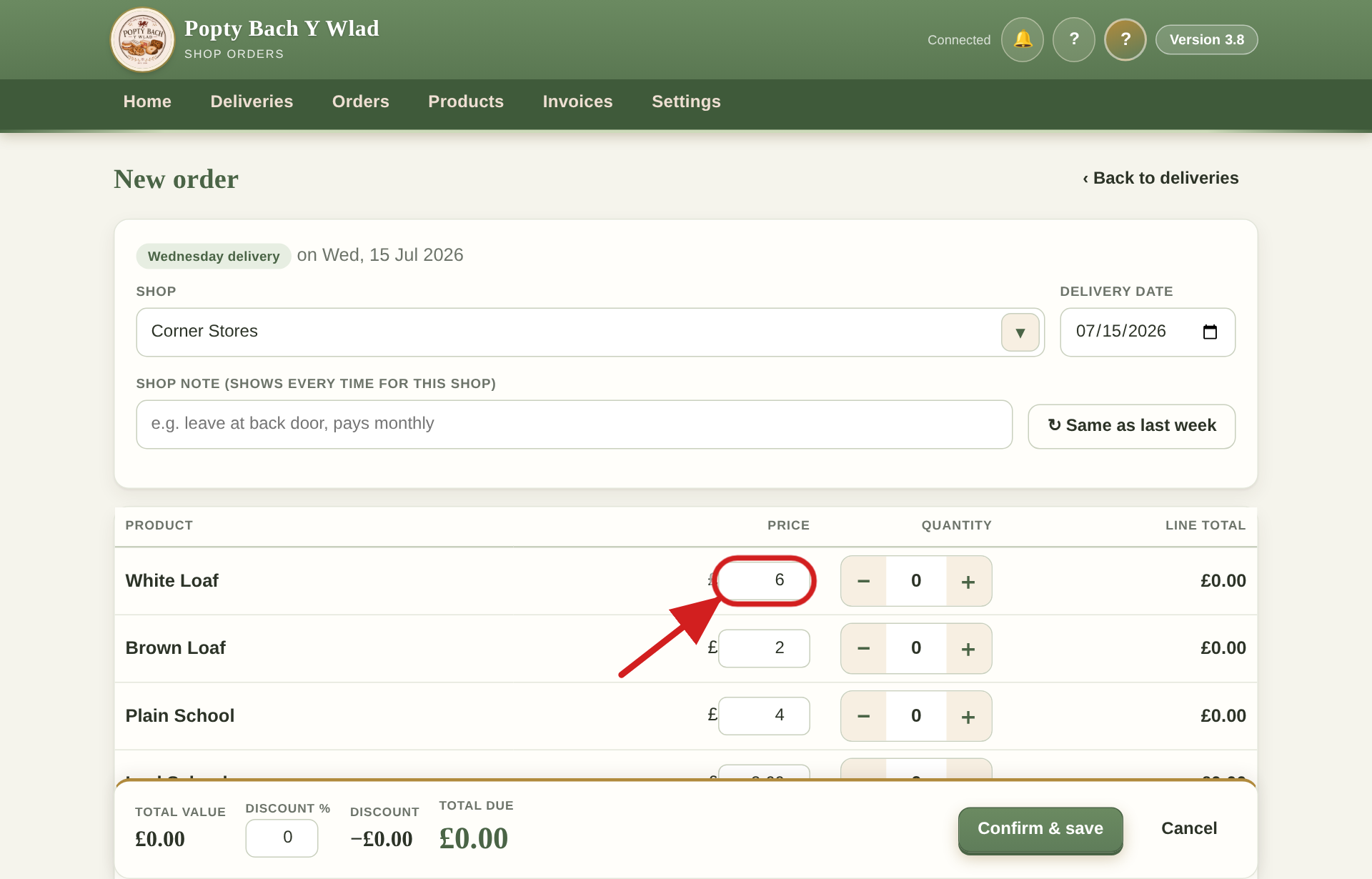
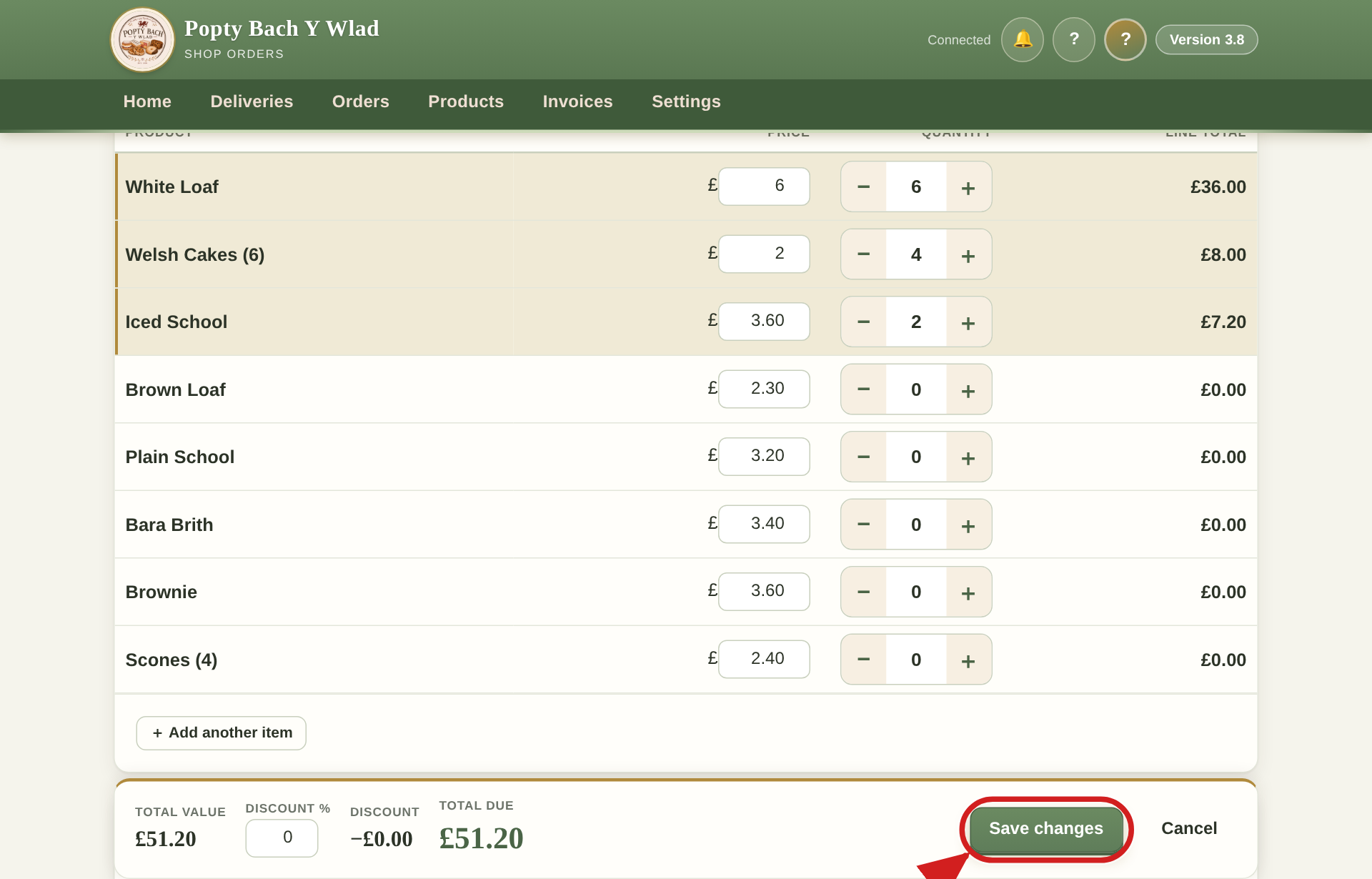
Type how many of each item
Type the amount the shop wants in the box next to each item. Leave anything they do not want empty. The total adds itself up at the bottom.
Press "Save changes"
When you are done, press the Save changes button. That is it, the order is safely stored.
2 · Printing invoices
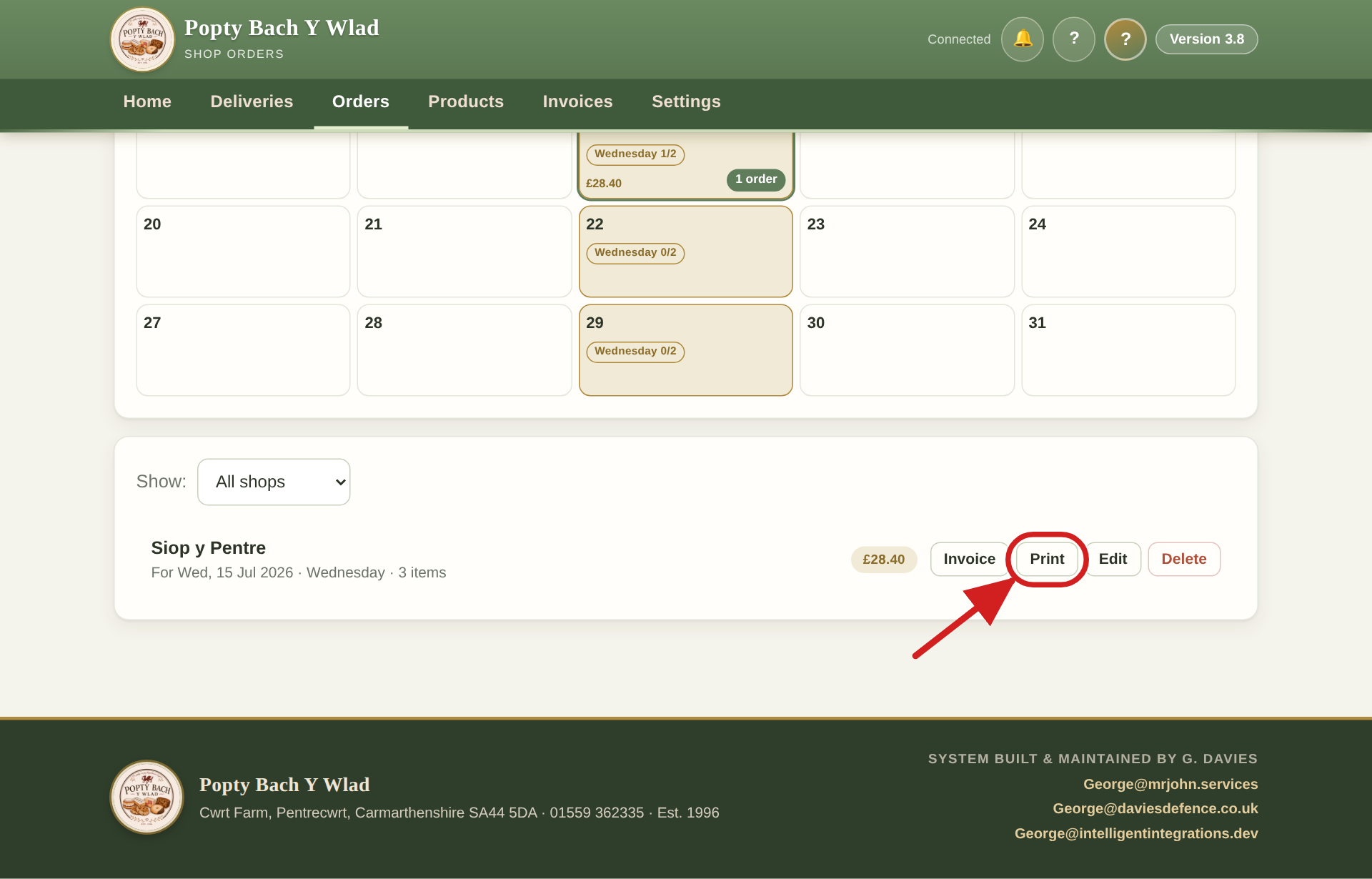
Print one shop's invoice
Go to Orders at the top of the screen. Find the shop in the list, then press its Print button. The invoice shows every product we make, with the ones they ordered highlighted.
Print every invoice at once
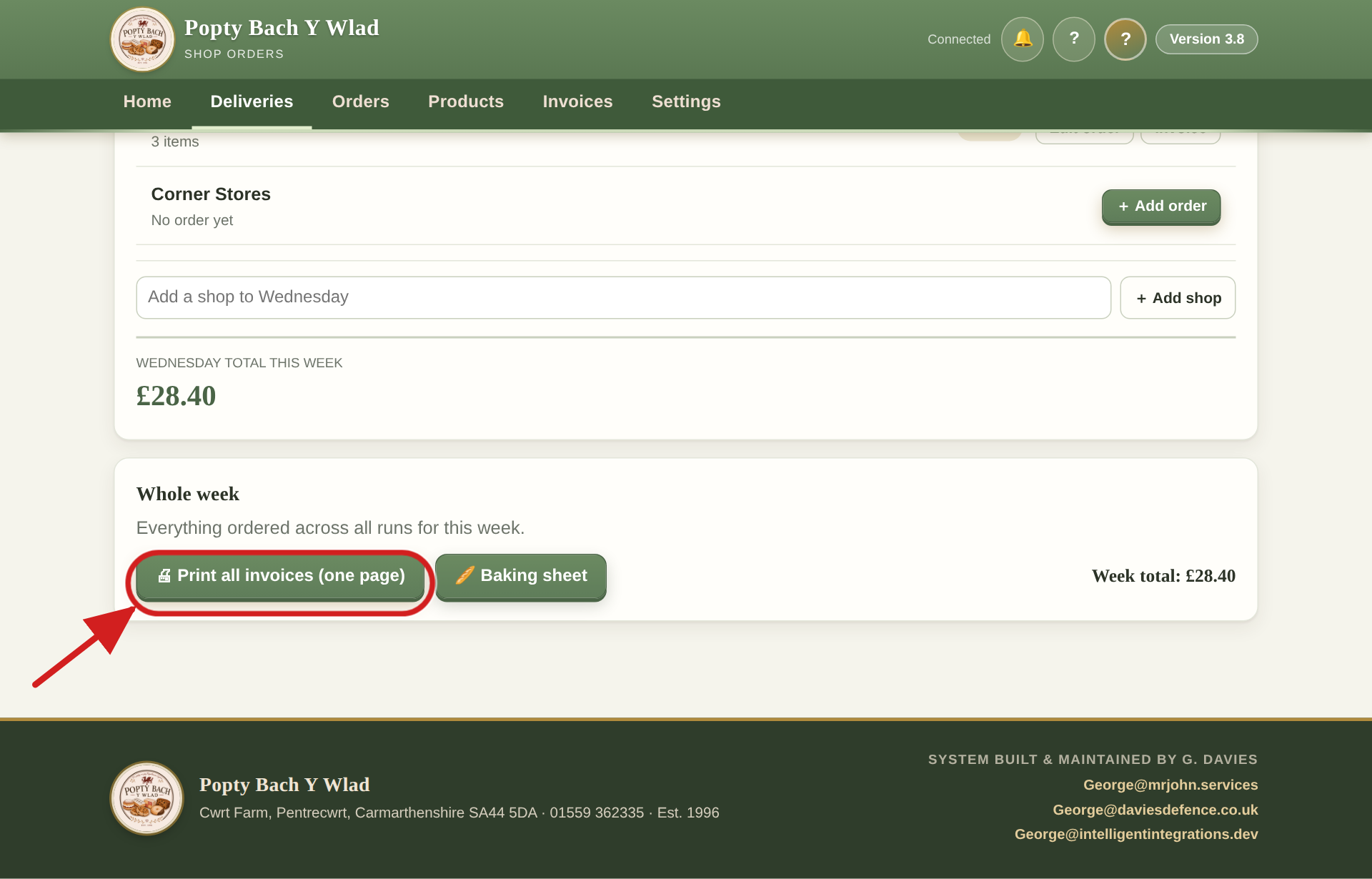
Go to Deliveries, and near the bottom press Print all invoices. That prints one for every shop that week, all in one go.
3 · Finding and changing an order
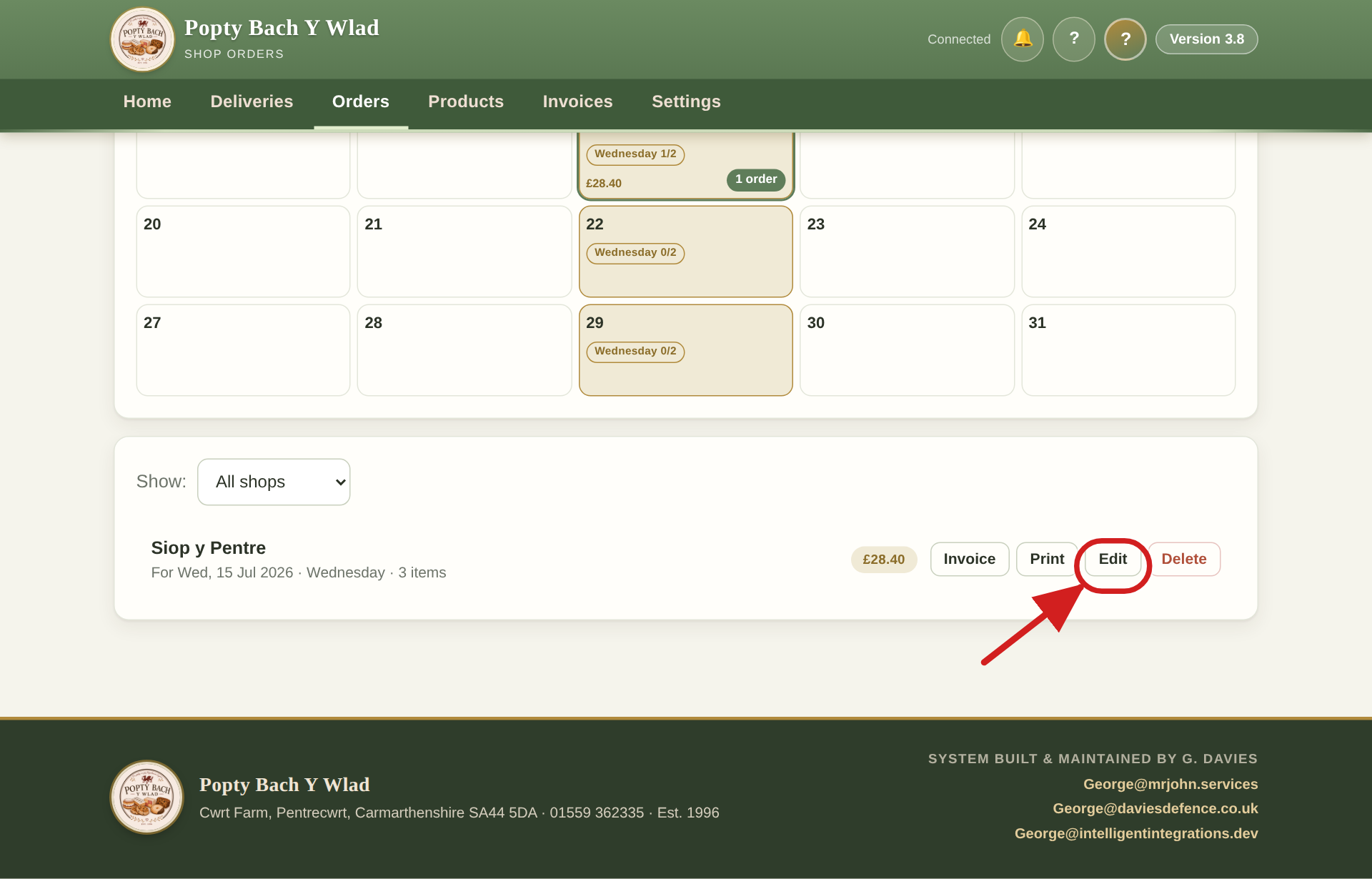
Find the order and press "Edit"
Go to Orders at the top. You will see the calendar and, below it, a list of orders. Find the shop and press its Edit button.
Change the amounts and save
Change whatever needs changing, then press Save changes, just like before. Nothing is ever lost, it simply updates.